Home
Home  Navigation


Minecraft is a highly popular game that can be enjoyed on nearly every type of device, including Chromebooks. These devices, which run on Chrome OS, are known for their convenience and ease of use. A common question among users is whether it's possible to play Minecraft on a Chromebook. The answer is a resounding yes!
In this comprehensive guide, we will walk you through the installation process and offer valuable tips for enhancing your gaming experience on a Chromebook.
Table of Contents
- General Information About Minecraft on a Chromebook
- Enabling Developer Mode
- Installing Minecraft on Chromebook
- Running the Game
- How to Play Minecraft on a Chromebook with Low Specs
- Enhancing Performance on Chrome OS
General Information About Minecraft on a Chromebook
To ensure a smooth gaming experience, your Chromebook should meet the following specifications:
- System Architecture: 64-bit (x86_64, arm64-v8a)
- Processor: AMD A4-9120C, Intel Celeron N4000, Intel 3865U, Intel i3-7130U, Intel m3-8100Y, Mediatek Kompanio 500 (MT8183), Qualcomm SC7180 or better
- RAM: 4 GB
- Storage: At least 1 GB of free space
These are the minimum requirements needed for running Minecraft on a Chromebook. If you encounter performance issues, refer to the performance enhancement guide at the end of this article. Now, let's delve into the installation process.
You can install the Bedrock Edition directly from the Google Play Store. Simply open the store, search for Minecraft, and navigate to its page. Be aware that it costs $20, but if you already own the Android version priced at $7, you'll only need to pay an additional $13. This method is ideal for those looking for a straightforward installation process.
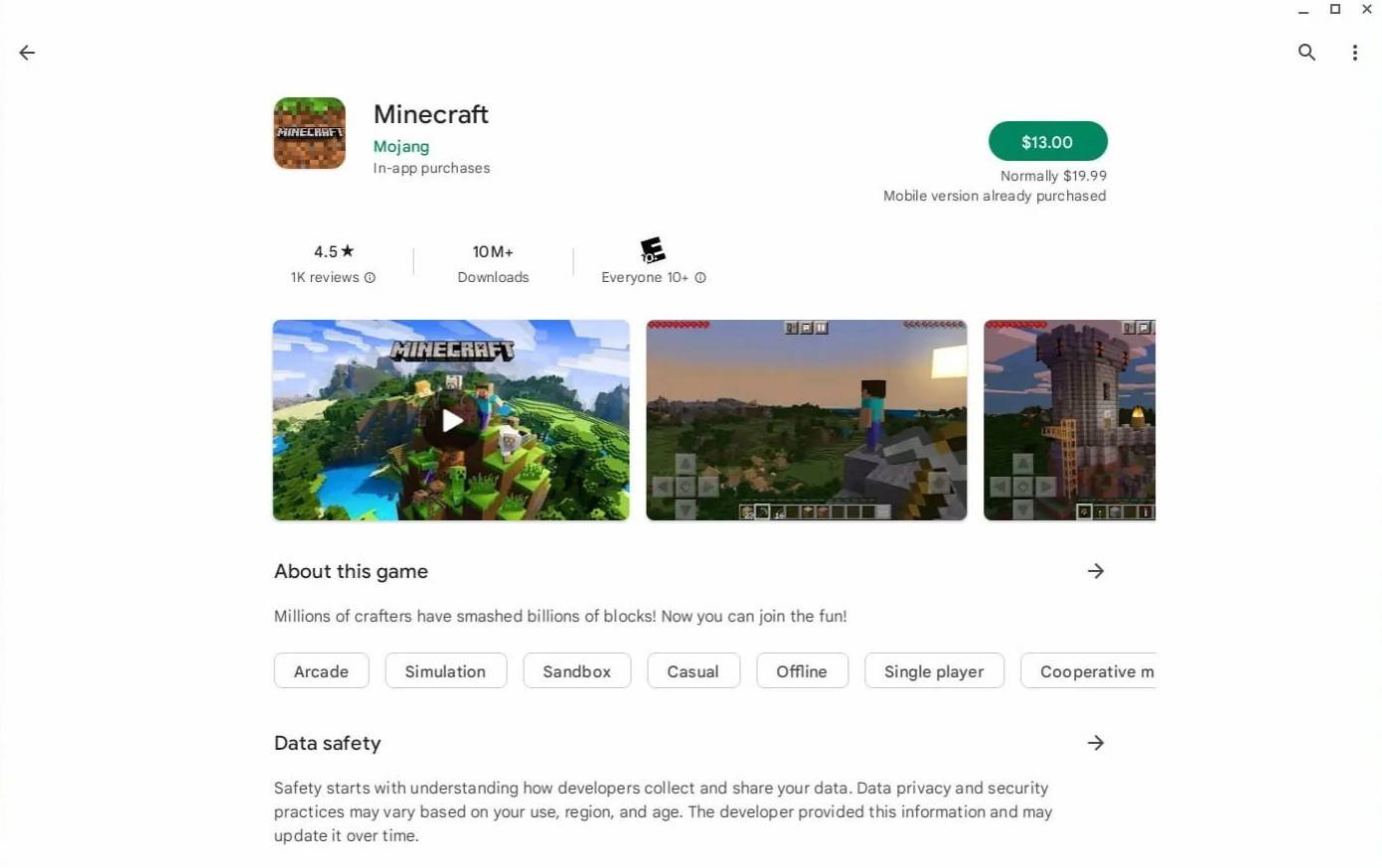
Image: aboutchromebooks.com
However, if the Bedrock Edition doesn't meet your preferences, you're in luck. Since Chrome OS is based on Linux, and Minecraft has long been available for Linux, you can install it on your Chromebook. This method requires a bit more attention to detail due to the differences from Windows, including some coding. We've prepared a detailed guide to help you play Minecraft on your Chromebook in just half an hour.
Enabling Developer Mode
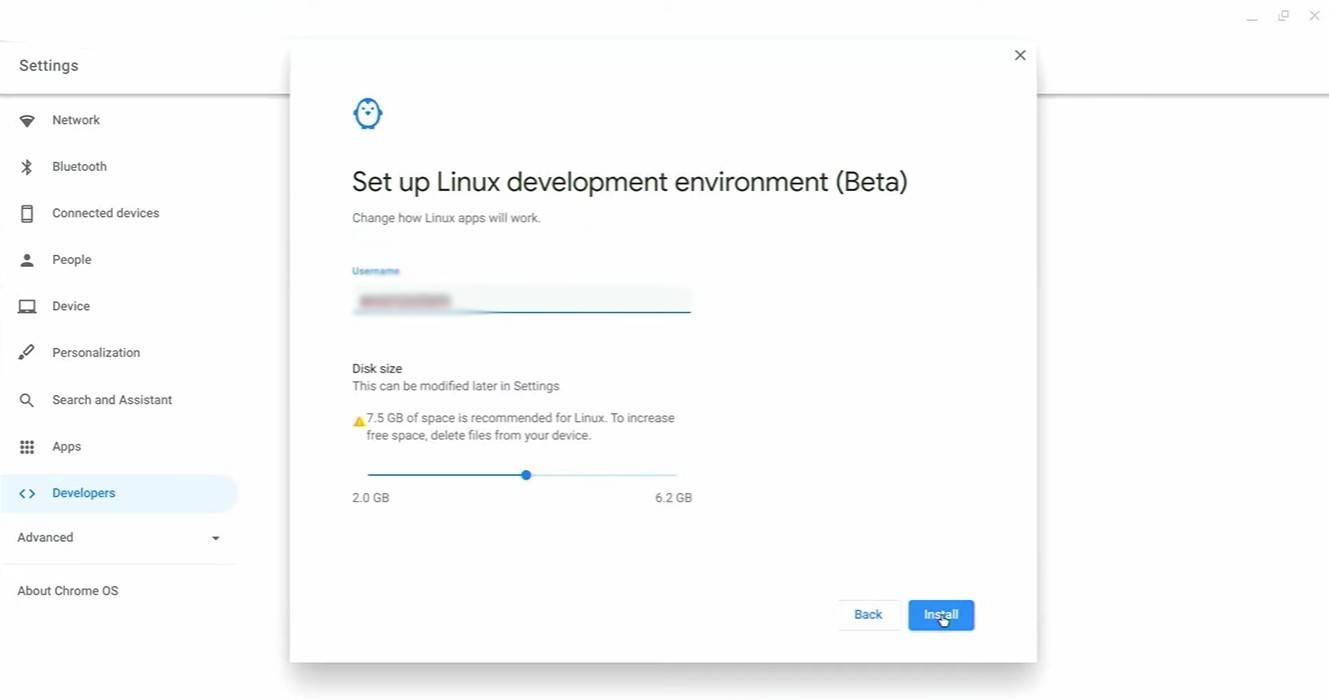
Image: youtube.com
To begin, you need to activate Developer Mode on your Chromebook. Access the settings menu through the Chrome OS equivalent of the "Start" menu and go to the "Developers" section. Enable the "Linux development environment" option. Follow the prompts on your screen until the process completes, which will open the Terminal—a program similar to the Windows command prompt where you'll continue your work.
Installing Minecraft on Chromebook
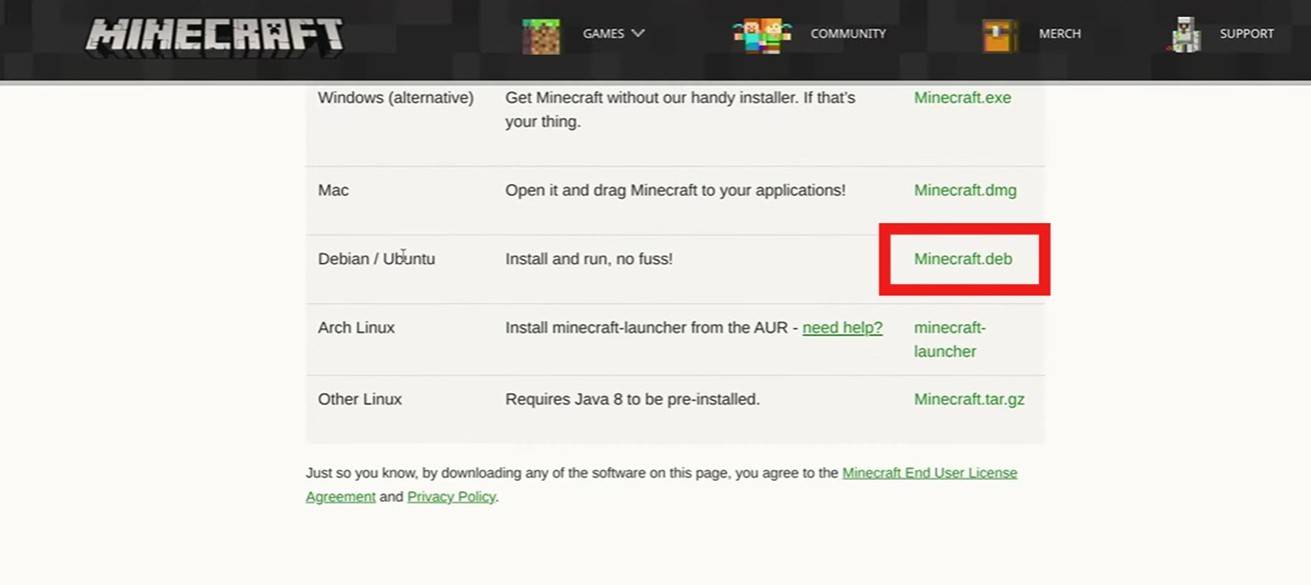
Image: youtube.com
 Latest Articles









 Latest Games